How to Upgrade from Ubuntu 25.10 to 26.04 LTS: A Step-by-Step Guide
Introduction
If you're still running Ubuntu 25.10, it's time to prepare for the jump to the latest long-term support release. Ubuntu 26.04 LTS, codenamed Resolute Raccoon, is now available for upgrades and brings a host of exciting features, including GNOME 50, Linux 7.0, new default applications, and improved developer tooling. With Ubuntu 25.10 support ending in July, upgrading ensures you stay secure and enjoy the latest enhancements. This guide walks you through the entire upgrade process, from backing up your system to verifying the installation, so you can make the transition smoothly.

What You Need
- An Ubuntu 25.10 system (standard or minimal installation)
- Stable internet connection (preferably broadband)
- At least 10 GB of free disk space
- Patience: upgrade may take 30-60 minutes
- Backup of important files (highly recommended)
- Administrative (sudo) access
Step-by-Step Upgrade Guide
Step 1: Back Up Your Data
Before making any major system change, protecting your personal files and configurations is essential. Back up your home directory, important documents, and any custom configuration files (e.g., ~/.bashrc, ~/.config). You can use built-in tools like Deja Dup (Backups) or simply copy files to an external drive. Don't skip this step—while the upgrade process is reliable, unexpected power loss or disk errors can occur.
Tip: If you use Ubuntu Pro, ensure your subscription token is saved; you'll need it after upgrade.
Step 2: Update Your Current System
Ensure your Ubuntu 25.10 is fully updated. Open a terminal and run:
sudo apt update && sudo apt upgrade -yThis fetches the latest packages and fixes any known issues, reducing the chance of upgrade conflicts. After the upgrade, reboot if the kernel was updated:
sudo rebootStep 3: Check System Readiness
Verify your Ubuntu version and ensure the upgrade tool is available. Run:
lsb_release -aYou should see Ubuntu 25.10. Also install the update-manager-core package if missing:
sudo apt install update-manager-core -yThen, check that the release upgrade tool can access the 26.04 repositories. Edit the configuration file (optional):
sudo nano /etc/update-manager/release-upgradesSet Prompt=normal (or lts for LTS-to-LTS, but here we want from 25.10 to 26.04). Save and close.
Step 4: Launch the Upgrade Process
Start the upgrade by running:
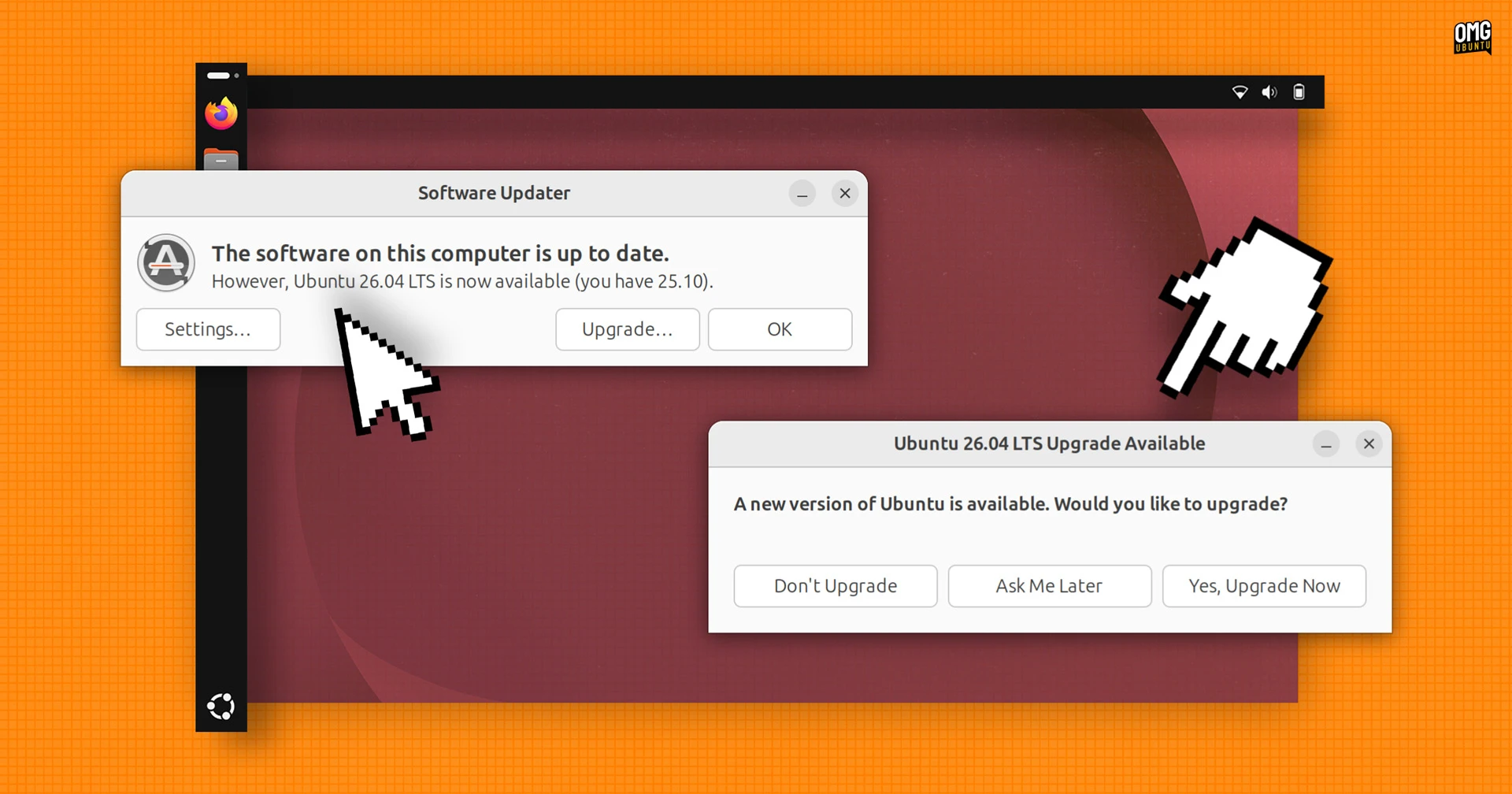
sudo do-release-upgradeIf the tool says no new release is found, ensure your internet is working and try with the -d flag (for development releases) only if 26.04 is still in early availability. In most cases, after the official announcement, do-release-upgrade will find the new version.
The process begins by fetching package lists and calculating dependencies. You'll see a summary of packages to be installed, removed, or upgraded. Review it carefully.
Step 5: Follow On-Screen Prompts
During the upgrade, you may be asked to:
- Confirm configuration file changes (recommend accepting maintainer's version unless you have custom modifications)
- Restart services (e.g., networking, display manager) – type Yes when prompted.
- Agree to the Ubuntu Pro setup if you choose to enable it later; the Security Center will now offer the option to enable Ubuntu Pro for extended security updates.
The upgrade will download hundreds of packages (several gigabytes). Depending on your internet speed, this may take 20-40 minutes. Do not interrupt the process—let it complete.
Step 6: Reboot into Ubuntu 26.04 LTS
Once the upgrade finishes, the tool will ask you to reboot. Save all work and run:
sudo rebootAfter restart, you should see the Ubuntu 26.04 LTS login screen. Log in with your usual credentials. The first boot may apply additional post-upgrade configurations.
Step 7: Verify the Upgrade
Confirm that you are now running Ubuntu 26.04 LTS:
lsb_release -aYou should see Ubuntu 26.04 LTS. Also check the GNOME version:
gnome-shell --versionIt should report GNOME 50. Test new features like:
- Snap Store and web searching inside GNOME Shell Overview (press Super key and type).
- Security Center – look for the Ubuntu Pro option now integrated.
- Visual password feedback for
sudocommands (you'll see asterisks as you type). - New default apps (e.g., updated Document Viewer, Text Editor).
Step 8: Post-Upgrade Tasks
To clean up old packages and ensure stability:
sudo apt autoremove -y
sudo apt autoclean
If you use development tools like NVIDIA CUDA or AMD ROCm, you'll find they are now directly available in the Ubuntu archives—no need for third-party repositories. Install them via apt:
sudo apt install nvidia-cuda-toolkit   # for CUDA
sudo apt install rocm-libs              # for ROCm
Also, consider enabling Ubuntu Pro for ten years of security updates (free for personal use up to 5 machines). Go to Settings > Security Center and sign in with your Ubuntu One account.
Tips for a Smooth Upgrade
- Do not force-quit the upgrade process; let it finish even if it appears stuck—some steps take time.
- Use a wired connection to avoid Wi-Fi drops during download.
- Disable third-party PPAs if you encounter dependency errors (they can be re-enabled after upgrade).
- If using a custom kernel or drivers (like NVIDIA proprietary), ensure they are compatible with Linux 7.0 before upgrading.
- Test new features like the updated folder icons in the file manager; it's a fresh look for Resolute Raccoon.
- Upgrade early – Ubuntu 25.10 support ends in July, so you have a few months but don't wait until the last minute.
- Consider a fresh install if you have many customizations or are facing upgrade issues. But the official upgrade path works well for most users.
With Ubuntu 26.04 LTS, you get a robust, modern platform for work and play. Enjoy the new GNOME enhancements, improved security, and seamless developer experience!
Related Articles
- How to Stay Productive When Ubuntu Services Are Unavailable Due to a DDoS Attack
- Terraform Unveils Cost Analytics and Project-Level Controls in Major Platform Update
- Ubuntu and Canonical Infrastructure Hit by Extended DDoS Attack, Pro-Iran Group Claims Responsibility
- Testing Sealed Bootable Container Images for Fedora Atomic Desktops
- Fedora Asahi Remix 44 Released: Apple Silicon Macs Get Latest Fedora with KDE Plasma 6.6 and Upstream Mesa
- Linux News Roundup: AI in Ubuntu, New Projects Folder, and Open Source Milestones
- 7 Essential Steps to Upgrade Your Fedora Silverblue to Fedora Linux 44
- New Wave of Lightweight Linux Distros Breathes Life into Aging Windows PCs