How to Set Up Walmart’s New 4K Google TV Streaming Stick as Your Chromecast Replacement
Introduction
Walmart has recently launched its new line of Google TV streamers, and the 4K streaming stick is already making waves. If you’ve been looking for an affordable yet powerful replacement for your Chromecast with Google TV (4K), this device delivers exactly what you need. This step-by-step guide will walk you through everything from unboxing to optimizing your streaming experience, so you can enjoy 4K content, Google Assistant, and a seamless smart home integration in no time.
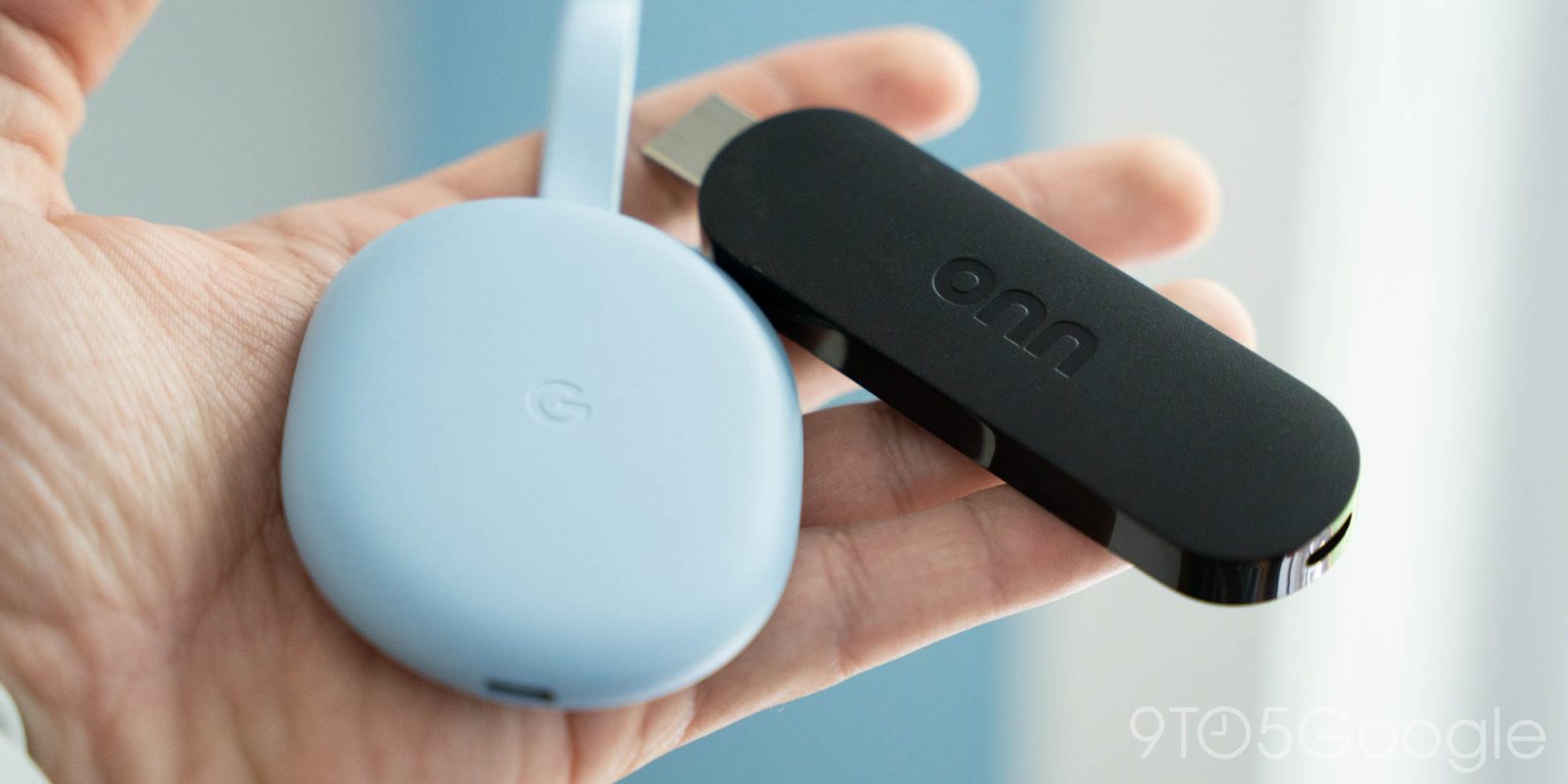
What You Need
- Walmart Onn 4K Google TV Streaming Stick
- A television with an HDMI port (preferably HDMI 2.0 or higher for 4K at 60fps)
- A stable Wi-Fi connection (2.4GHz or 5GHz)
- A power outlet (the stick includes a USB power cable and adapter)
- A Google account (for signing into the Play Store and using Google services)
- Optional: A 4K HDMI cable if you plan to extend the reach (the stick is direct-plug, but an extension can help with positioning)
Step 1: Unbox and Identify Components
Open the box and check that you have the streaming stick, the remote control (with batteries), a USB power cable, a wall power adapter, and a quick start guide. The stick itself is compact and plugs directly into your TV’s HDMI port. Keep the remote handy – you’ll need it to navigate the initial setup.
Step 2: Connect the Streaming Stick to Your TV
Insert the streaming stick into an available HDMI port on your television. If your TV’s HDMI ports are hard to reach or the stick blocks adjacent ports, use an HDMI extension cable (not included, but recommended). Then, plug the USB power cable into the stick and connect the other end to the included wall adapter. Finally, plug the adapter into a power outlet. Your TV should automatically detect the new source; if not, change the input to the corresponding HDMI port using your TV remote.
Step 3: Power On and Select Language
Once the stick powers up, you’ll see the Google TV welcome screen. Use the remote to select your preferred language. The remote pairs automatically via Bluetooth, so you can navigate immediately. If the remote doesn’t work, press and hold the Home and Back buttons for a few seconds to force a pairing.
Step 4: Connect to Wi-Fi
Choose your Wi-Fi network from the list and enter the password. A strong connection is crucial for smooth 4K streaming. If you have a dual‑band router, select the 5GHz band for better performance. The stick supports both 2.4GHz and 5GHz, so choose whichever gives you the fastest speed in your location.
Step 5: Sign in with Your Google Account
Enter your Google account credentials. This step links the device to your subscriptions (like YouTube TV, Netflix, Disney+) and syncs your preferences. If you don’t have an account, you can create one during this step. A Gmail address works perfectly. After signing in, you’ll be asked to accept the Terms of Service and privacy policy.
Step 6: Customize Your Google TV Experience
Google TV will ask if you want to set up a personal profile, select your favorite streaming services, and choose content preferences. Take a moment to select the apps you use most – this tailors the home screen recommendations. You can also enable Google Assistant by choosing “Voice Match” if you plan to use voice commands like “Hey Google, play Stranger Things.”
Step 7: Install Essential Apps and Update Firmware
After the initial setup, the system will check for firmware updates. It’s important to install these to ensure performance and security. Then open the Google Play Store app on the home screen and install any additional streaming apps you need (e.g., Amazon Prime Video, Apple TV+, Plex). The device comes with a generous 8GB of internal storage, so prioritize your most-used apps.

Step 8: Adjust Display and Audio Settings
Navigate to Settings > Display & Sound to fine-tune your experience. Set resolution to 4K 60Hz (or 4K 30Hz if your TV doesn’t support 60). Enable HDR if your TV supports it – the stick supports Dolby Vision and HDR10. For audio, select HDMI (passthrough) to let your soundbar or AVR decode surround sound, or choose PCM if you’re using TV speakers.
Step 9: Pair Additional Accessories (Optional)
If you have Bluetooth headphones or a game controller, pair them under Settings > Remotes & Accessories > Pair accessory. This is great for private listening during late‑night shows. The stick also works with smart home devices if you have Google Nest speakers or lights – just enable “Works with Google Home” in the Google Home app on your phone.
Step 10: Start Streaming and Explore Features
Your setup is complete! Open Netflix or YouTube to test 4K playback. Press the Google Assistant button on the remote to ask questions, control smart devices, or search for content. The stick also supports Chromecast built‑in, so you can cast from your phone as you did with the old Chromecast. Enjoy your new streaming hub.
Tips and Tricks
- Placement matters: If the stick gets hot or Wi‑Fi signal weakens, use an HDMI extension cable to move it away from the TV’s metal casing.
- Remote shortcuts: Customize the remote buttons (e.g., long‑press Netflix) in Settings > Remotes & Accessories > Customize remote.
- Storage management: With only 8GB of app storage, occasionally clear cache (Settings > Apps > see all apps) to free up space.
- Use 4K wisely: Not all content is 4K – look for “4K” or “UHD” labels in streaming apps. For heavy 4K streaming, ensure your internet speed is at least 25 Mbps.
- Backup and restore: When switching to a new device, use Google’s backup feature to transfer your apps and settings quickly.
- Kids profile: Set up a supervised profile for children with parental controls under Settings > Accounts & Sign‑in > Kids profile.
Related Articles
- Spotify's Green Verification Badge: How It Ensures You're Listening to Real Artists
- Navigating the AI Music Wave: How Streaming Platforms Are Adapting with Labels, Rankings, and Detection Tools
- Apple's Grand Prix Expansion: A Strategic Guide to F1 Movie Sequels and Streaming Growth
- Building Robust UIs for Real-Time Streaming Data
- Building Rock-Solid Interfaces for Real-Time Streaming Content
- Building with AI Agents: A Practical Guide Inspired by Spotify and Anthropic
- 10 Critical Updates on Spotify’s Google Cast Device Disappearance
- 10 Things You Need to Know About Agentic Development