Beyond the Cloud: Why Google Drive Isn't Your Backup Plan
Overview
Everyone in tech has heard the 3-2-1 backup rule. It's the kind of advice that gets repeated so often it starts to feel like background noise, the digital equivalent of 'eat your vegetables.' It's simple, it works, and it has saved countless people from catastrophic data loss. But there's a dangerous misconception lurking: many people treat cloud storage services like Google Drive as a full backup solution. This tutorial will explain why Google Drive alone fails as a backup strategy and guide you through implementing a robust, multi-layered approach using the 3-2-1 rule. You'll learn to distinguish between sync and backup, avoid common pitfalls, and set up a system that truly protects your data.
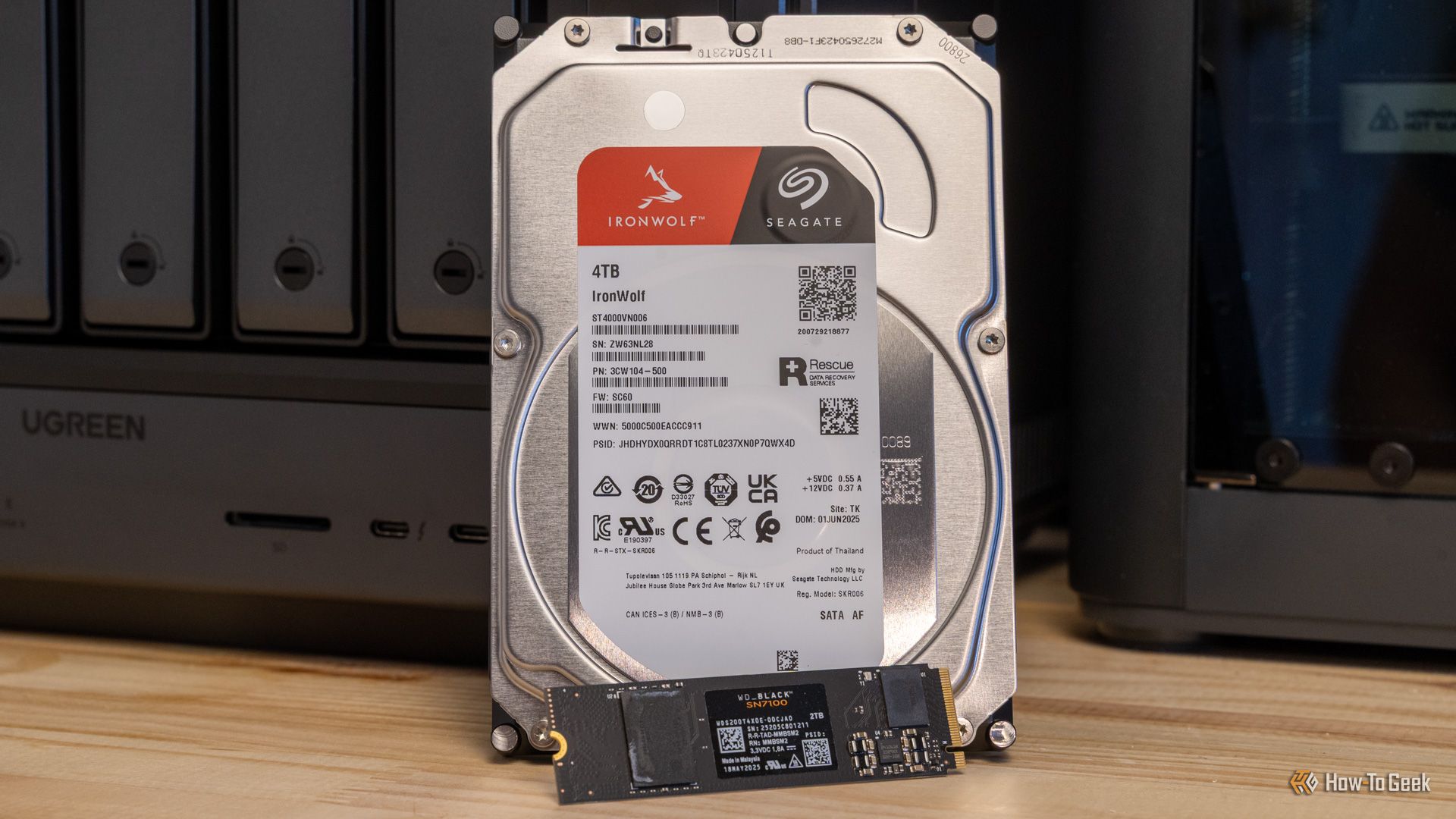
Prerequisites
- Basic understanding of cloud storage (e.g., Google Drive, Dropbox)
- Access to a Google Drive account (or similar service)
- Optional: A secondary storage service (e.g., Backblaze, AWS S3) or external drive
- Comfort with command-line tools (for advanced automation) or willingness to use GUI backup software
- A few gigabytes of free space to test backup operations
Step-by-Step Instructions
1. Understand the Difference Between Sync and Backup
Google Drive is a sync service, not a backup service. Sync mirrors changes across devices—if you delete a file by accident, it's instantly deleted everywhere (unless you catch it in the trash). Backup creates a separate, versioned copy that can be restored independently. The 3-2-1 rule demands three copies of your data, on two different media types, with one offsite. Google Drive alone fails because it's one copy on one medium (the cloud) and the same medium as your device if synced. Follow these steps to shift your mindset and architecture.
2. Implement the 3-2-1 Rule Properly
2a. Identify Your Primary Data
List all critical files: documents, photos, projects, databases. Exclude system files. For a home user, focus on ~/Documents, ~/Pictures, etc. For a developer, add Git repositories and Docker volumes.
2b. Create Three Copies
Copy 1 (your working copy): Store files on your local drive (e.g., C:\Users\You\Data). Use sync software to keep it organized but do not rely on sync as a backup.
Copy 2 (local backup): Use an external hard drive or a second internal drive. Example with rsync on Linux/Mac:
rsync -avh --delete /home/you/data/ /mnt/backup/external/On Windows, use robocopy:
robocopy C:\Users\You\Data D:\Backup /E /R:2 /W:5Copy 3 (offsite backup): Use Google Drive or another cloud service as one of the copies, but not the only offsite. For true 3-2-1, you need a different service or medium. Use rclone to sync to a different cloud provider (Backblaze B2, AWS S3) or to Google Drive with versioning enabled. Example:
rclone sync /home/you/data/ remote:my-backup-bucket/Set up versioning on Google Drive: Enable 'Keep forever' in the Drive trash settings (file version history only for Docs). For general files, use a tool like rclone with --backup-dir flag to preserve deletions.

3. Automate Your Backups
Manual backups are forgotten. Schedule them. On Linux, add a cron job:
0 2 * * * rsync -avh /home/you/data/ /mnt/backup/On Windows, use Task Scheduler with a PowerShell script:
robocopy C:\Users\You\Data D:\Backup /MIR /R:2 /W:5Test your automation monthly. Use diff or checksum tools to verify integrity.
4. Test Your Restore Process
A backup is only as good as its restoration. Simulate a disaster: delete a file from your working copy, then restore from the local backup and from the offsite backup. Document the steps. If you use Google Drive, note that restoring from trash is simple but limited to 30 days (or 100 days with administrator settings). For proper version control, store backups with timestamps.
Common Mistakes
- Relying on sync as backup: Sync propagates errors; a ransomware attack can encrypt all synced copies. Always have an independent backup.
- Not using versioning: Google Drive's version history only works for native Google files, not uploads. Use a backup tool that keeps multiple versions.
- Ignoring the 3-2-1 rule's 'two different media': Cloud-to-cloud backup (e.g., Google Drive -> Dropbox) uses the same medium—the internet. Include an external drive or tape.
- Never testing restores: A silent backup failure won't reveal itself until you need it. Run restore drills quarterly.
- Forgetting about offline copies: Cloud-only strategies fail if the provider goes down or your internet is out. Keep a local external drive disconnected from your main system.
- Not encrypting sensitive data: When using cloud backup, encrypt locally before upload (e.g., with
gpgorrclone crypt).
Summary
Google Drive alone is not a backup strategy. It's a convenient sync tool that can be part of a larger 3-2-1 plan, but treating it as a complete solution leaves you vulnerable. Real backups are independent, versioned, and tested. By following this guide—understanding sync vs backup, creating three copies on two media with one offsite, automating the process, and avoiding common mistakes—you'll build a resilient system that protects your data from accidents, ransomware, and provider failures. Remember: backup is not a one-time setup; it's a continuous habit.
Related Articles
- How to Decode Apple’s Earnings Calls: Spotting Delayed Product Launches
- Mastering Modern CSS: Q&A on Voxel Scenes, Focus Animation, Advanced Selectors, and More
- 8 Key Updates in Android's April 2026 System Release You Should Know
- Pentagon Releases Trove of Declassified UFO Files Spanning Decades, Including Apollo-Era Astronaut Encounters
- Kubernetes 1.36 Delivers Crash-Consistent Volume Group Snapshots for Production
- The Push for Stronger Oversight of Educational Technology in Schools
- DeepSeek Unveils Blueprint for Cost-Effective AI Scaling in New Hardware-Aware Training Paper
- Pornhub Leverages Apple’s Built-In Age Verification for UK Users: Everything You Need to Know